Connection via OpenGDS ID
Supported systems include: D-EDGE, Hotel-Spider, SiteMinder, Staah, and more.
For these systems, establishing a connection is straightforward as you only need your unique OpenGDS Property ID. You can find this ID by navigating to Extra > Channel Manager in your OpenGDS dashboard and selecting your specific system. Once you have your ID, log in to your provider's platform, find the option to add a new channel, select 'OpenGDS', and enter your Property ID (sometimes referred to as a HotelCode) to establish the link.
For these systems, establishing a connection is straightforward as you only need your unique OpenGDS Property ID. You can find this ID by navigating to Extra > Channel Manager in your OpenGDS dashboard and selecting your specific system. Once you have your ID, log in to your provider's platform, find the option to add a new channel, select 'OpenGDS', and enter your Property ID (sometimes referred to as a HotelCode) to establish the link.
Connection via Credentials
Supported systems include: Cloudbeds, Dingus, MyTourist, RoomCloud, and more.
For these systems, you will need specific credentials to establish a secure connection. You can find these details by navigating to Extra > Channel Manager in your OpenGDS dashboard and selecting your specific system. Depending on the system, you will require a combination of your Property ID (sometimes referred to as a HotelCode), Username, and Password. Simply copy these values from OpenGDS and enter them into the channel setup or connection settings of your provider's platform.
For these systems, you will need specific credentials to establish a secure connection. You can find these details by navigating to Extra > Channel Manager in your OpenGDS dashboard and selecting your specific system. Depending on the system, you will require a combination of your Property ID (sometimes referred to as a HotelCode), Username, and Password. Simply copy these values from OpenGDS and enter them into the channel setup or connection settings of your provider's platform.
Provider-Initiated Connections
Supported systems include: DIRS21, HotelNetSolutions, RateTiger, Windsurfer CRS, and others.
To begin, navigate to Extra > Channel Manager in your OpenGDS dashboard and select your specific system. Depending on the system, the technical setup is either handled entirely by the provider's support team, or their platform requires you to manually input the mapping data on their end. While all individual IDs are visible within OpenGDS, this setup generally requires a complete mapping overview. Once your property and rate plans are set up, simply notify our support team. We will quickly generate and provide this full overview for you (or send it directly to your provider) to ensure a smooth activation.
To begin, navigate to Extra > Channel Manager in your OpenGDS dashboard and select your specific system. Depending on the system, the technical setup is either handled entirely by the provider's support team, or their platform requires you to manually input the mapping data on their end. While all individual IDs are visible within OpenGDS, this setup generally requires a complete mapping overview. Once your property and rate plans are set up, simply notify our support team. We will quickly generate and provide this full overview for you (or send it directly to your provider) to ensure a smooth activation.
Apaleo Integration
To connect OpenGDS with Apaleo, first locate your Apaleo Property ID within your Apaleo dashboard:
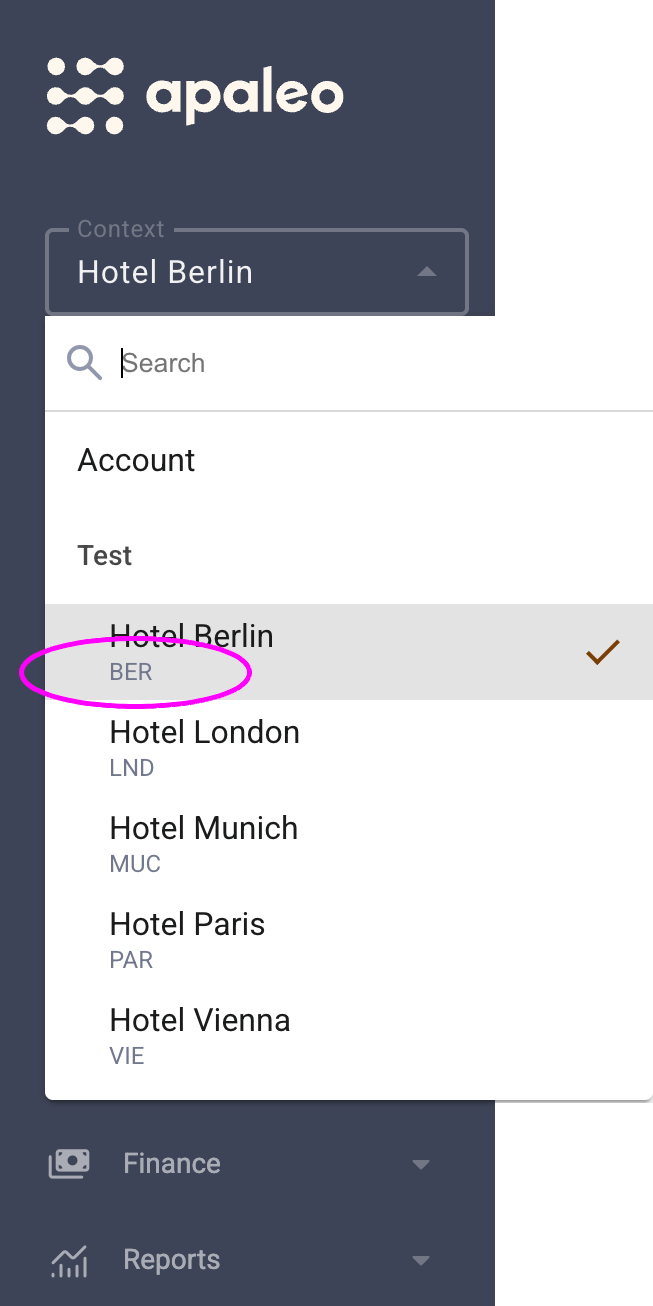
- Navigate to Extra > Channel Manager in your OpenGDS dashboard and click on Settings.
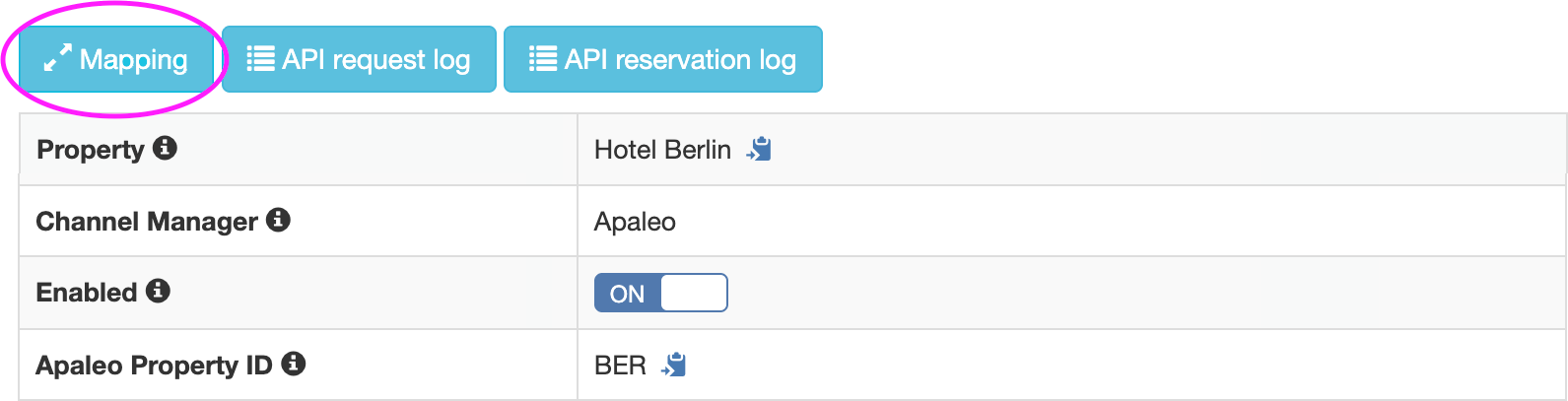
- Select Apaleo from the list, input the Apaleo Property ID, and click Save.
- You will now be redirected to Apaleo to approve the connection. When successful you see the message "Authorization successful!". Click Return to proceed.
- Click the Mapping button on the same page and complete the mapping. (Note: Your rate plans must already exist in OpenGDS before they can be mapped. Please ensure your partner or OTA has set these up beforehand).
Mews Integration
To establish the connection between Mews and OpenGDS, follow these steps:
- Navigate to Extra > Channel Manager in your OpenGDS dashboard and click on Settings.
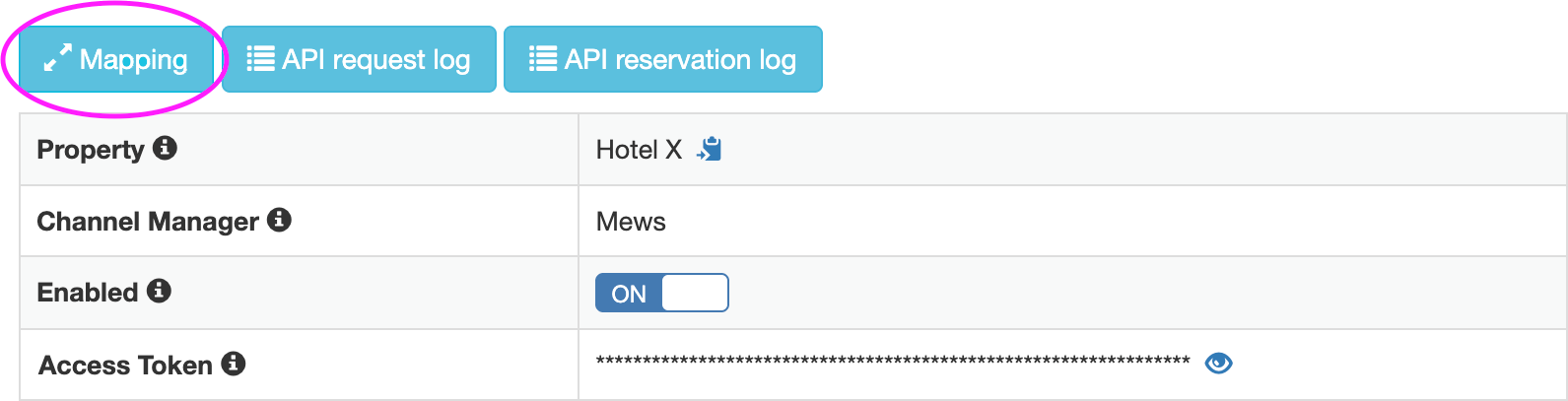
- Select Mews from the list, input the Access Token generated from your Mews environment, and click Save. (For more details on generating your token, please refer to the Mews Help Center articles on OpenGDS for Mews Operations and Finding an Access Token).
- Click the Mapping button on the same page and complete the mapping. (Note: Your rate plans must already exist in OpenGDS before they can be mapped. Please ensure your partner or OTA has set these up beforehand).
Booking Experts Integration
To connect OpenGDS with Booking Experts, first locate your Administration ID for the property within your Booking Experts environment:
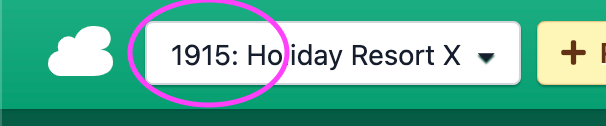
- Navigate to Extra > Channel Manager in your OpenGDS dashboard and click on Settings.
- Select Booking Experts from the list, input the Administration ID, and click Save.
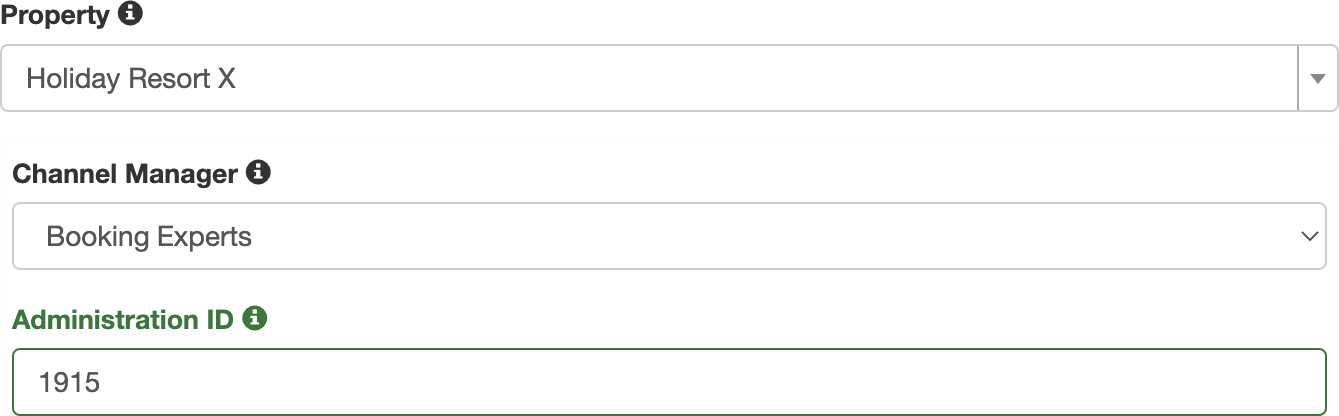
- Install the OpenGDS App within your Booking Experts environment.
- After successfully installing the app, return to the OpenGDS Channel Manager page and click the Mapping button. (Note: Here you can complete the mapping for your Accommodations and Supplements).
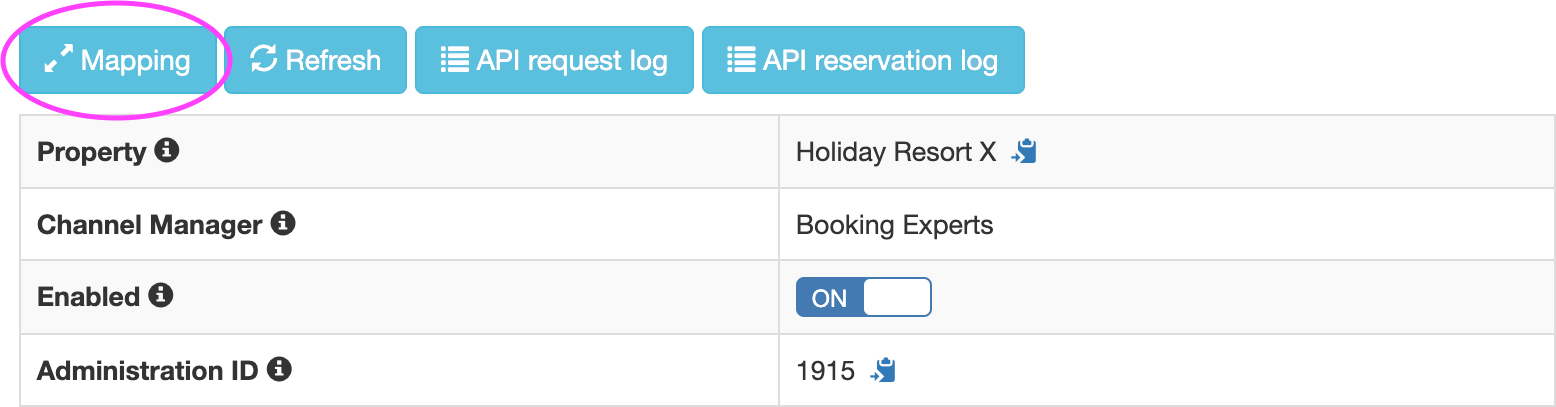
- Once the initial mapping is completed, click the Refresh button to initiate the synchronization from Booking Experts.
iCal Synchronization
If you operate without a Channel Manager, you can still automate your availability with external calendars (like Hostaway, Sirvoy, Ctoutvert, or your personal calendar) using a two-way iCal connection.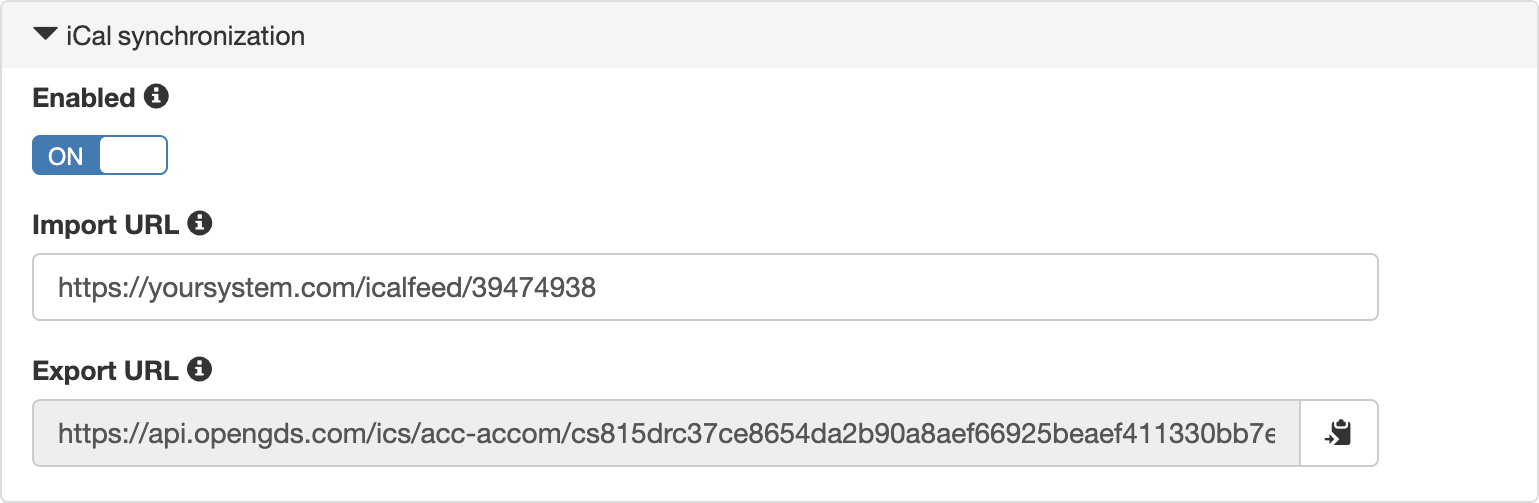
- Navigate to Accommodations in your OpenGDS dashboard and edit the specific accommodation.
- Scroll down and open the iCal synchronization tab (Note: If you do not see this tab, you do not have the required user permissions).
- Set the Enabled switch to ON.
- Paste the Import URL from your external platform into OpenGDS so we can automatically block your availability when a booking is made elsewhere. (OpenGDS checks this import link once per hour).
- Copy the Export URL provided by OpenGDS and paste it into your external platform to automatically block dates when reservations are made on OpenGDS.
- Click Update to apply your settings.
Important Security Note: Do not share your Export URL anywhere other than the system that needs to import the reservations. This URL can be used to extract confidential guest information.